
What you need
Install 29 Card Game on each Android phone or Windows PC and connect every device to the same local Wi-Fi network. Two to four people can join a table. This is local multiplayer: a friend on another network cannot join over the internet. The browser version is for solo play against bots.
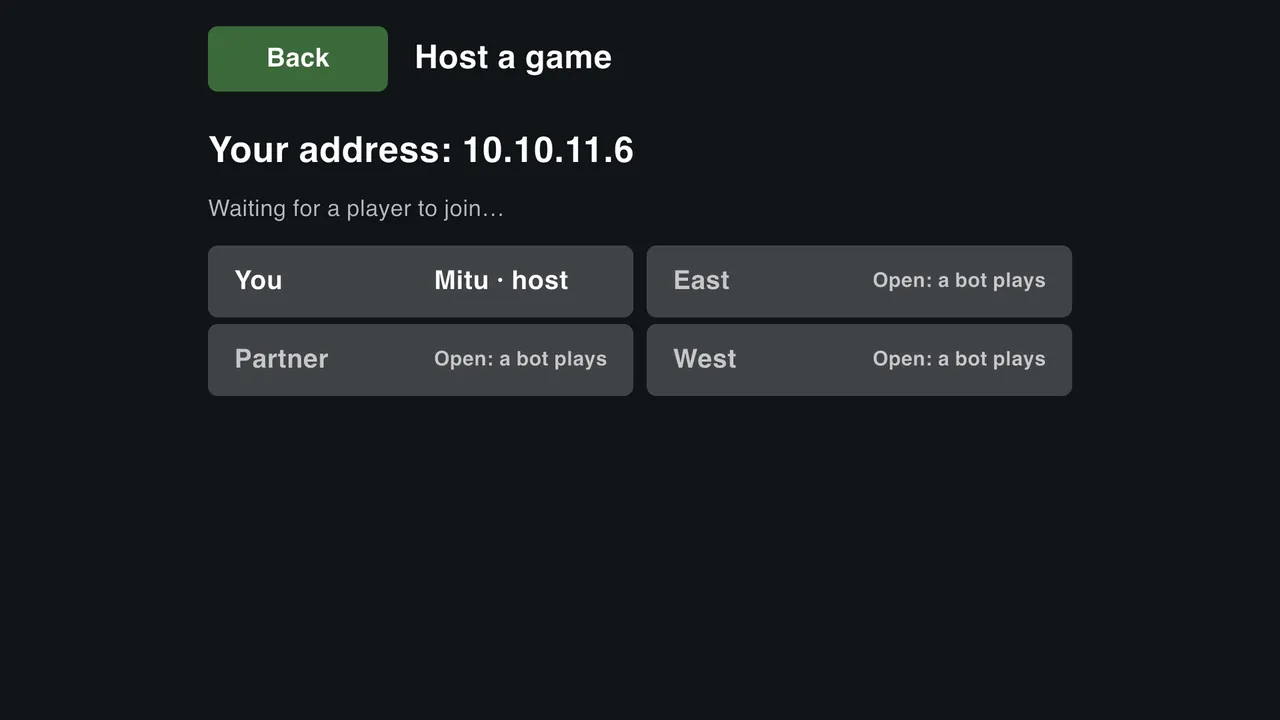
Host and join a match
- Update all devices to the latest available version, then open the installed game.
- Choose Wi-Fi multiplayer. One player hosts a table; the other players choose to join.
- Keep the host's lobby open while friends look for the table. If discovery does not find it, use the manual address option shown in the join screen.
- Wait for everyone to appear in the lobby before the host starts the match.
The host keeps the match running. Keep that device connected, leave the game open, and avoid switching networks during a hand.
The table does not appear
Check the Wi-Fi network name on every device. A phone using mobile data or another Wi-Fi network is not on the same local network. Guest, hotel and office Wi-Fi may isolate devices even when they share a network name; try a trusted home network where local device communication is allowed.
If you use a VPN, check whether it allows local network access. A VPN that routes or blocks local traffic can prevent discovery. The manual address option can help when discovery is blocked, but it cannot overcome network isolation.
Windows cannot host or join
Check whether Windows Firewall permits the game on your trusted private network. Allow the game itself if needed; keep the firewall enabled. Confirm the PC and phones are connected to the same network, and try hosting from an Android phone to narrow down the problem.
A player disconnects
Check Wi-Fi signal, keep the host app in the foreground, and ensure the device has enough battery. If the lobby or match cannot recover, return to the menu and create a new table. An offline saved match is separate from a live Wi-Fi session; do not assume closing the host will preserve everyone’s connection.
Can friends play from different homes?
Not in the current release. Local Wi-Fi multiplayer does not provide remote internet matchmaking. You can still practise against three bot difficulty levels without a connection after installation.
Still stuck?
Send the app version, device models, Android or Windows version, and the step where it fails to sadid.jones@gmail.com. Include the visible error message if there is one. Never include your Wi-Fi password.